In the digital era of 2026, streaming is king, but having offline access to your favorite content remains a necessity. Whether you are traveling or dealing with a spotty internet connection, knowing how to use Freemake Video Downloader can be a lifesaver. This comprehensive guide will walk you through everything from installation to advanced features.
What is Freemake Video Downloader?
Freemake has been a household name in the software industry for over a decade. It is a powerful tool designed to grab videos from popular platforms like YouTube, Vimeo, and Dailymotion. The software stands out because of its simplicity and ability to handle various formats, including MP4, AVI, and MKV.
Note: Always ensure you have the right to download a video. Respecting copyright is crucial for a sustainable creator economy.
Step 1: Downloading and Installing the Software
To get started, you need to visit the official website. Be cautious of third-party mirrors that might bundle unwanted software.
- Navigate to the Freemake official site.
- Click the “Download” button.
- Run the installer and follow the on-screen instructions.
During installation, pay close attention to the checkboxes. Sometimes free tools offer “optional” software. If you are looking for other tools to enhance your productivity, you might want to check out the latest app reviews to stay updated.
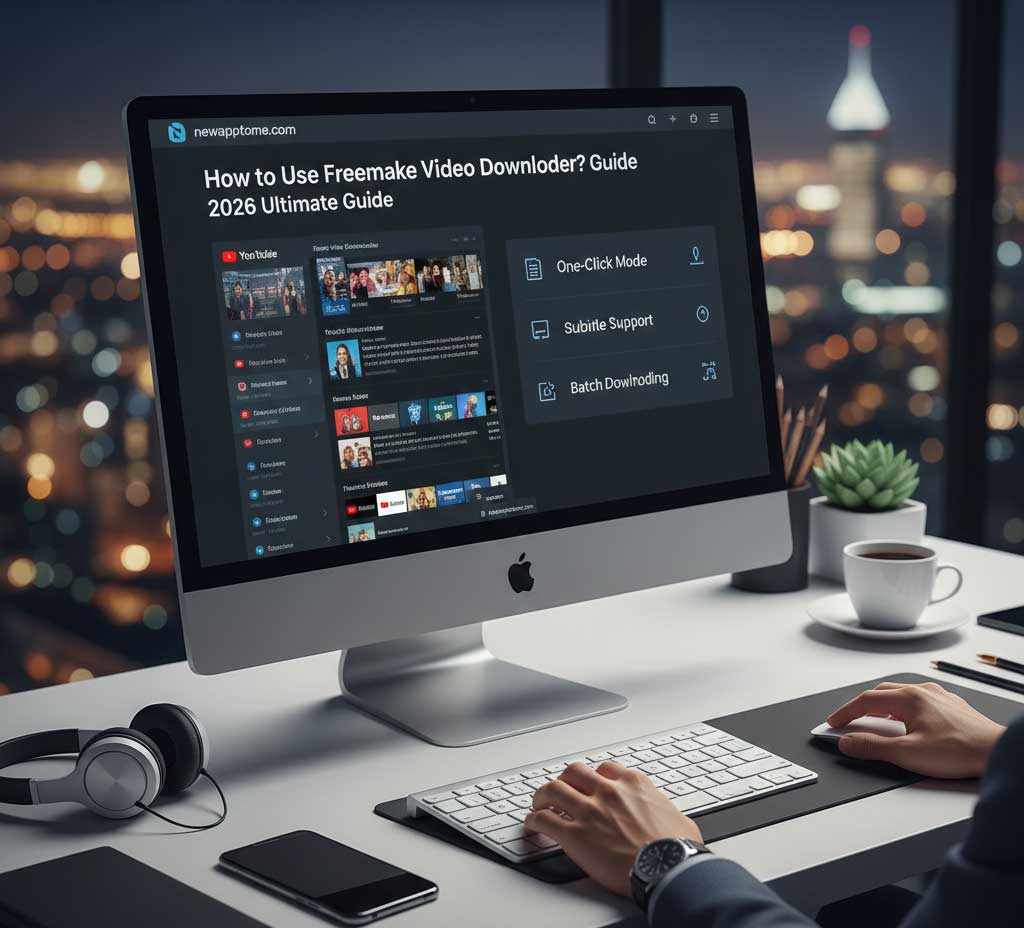
Step 2: How to Use Freemake Video Downloader Efficiently
Using the tool is straightforward. Follow these steps to save your first video:
- Copy the URL: Go to your browser and copy the link of the video you wish to download.
- Paste URL: Open Freemake and click the “Paste URL” button at the top left.
- Choose Format: A window will pop up. Select your preferred quality (e.g., 1080p or 4K).
- Convert and Download: Choose “Only Download” or “Convert to MP4.”
If you encounter issues with file formats, understanding how to manage mobile applications can often provide insights into cross-platform compatibility.
Key Features of Freemake in 2026
The 2026 version of this tool has introduced several enhancements that make it a top-tier free video downloader for Windows 11.
| Feature | Description |
| One-Click Mode | Set a default quality and folder for faster downloads. |
| Subtitle Support | Download videos with subtitles automatically embedded. |
| Cloud Integration | Directly upload downloaded files to Dropbox or Google Drive. |
| Batch Downloading | Paste multiple links at once to save time. |
Is Freemake Video Downloader Safe?
Safety is a common concern for many users. While the official version is safe, the “freemium” model often includes ads. For those looking for a cleaner experience, exploring a Freemake Video Downloader alternative 2026 might be a wise choice. Tools like 4K Video Downloader or yt-dlp offer different perks.
To ensure your device remains secure while using such tools, you can read our guide on safe software installation practices.
Advanced Tips: Converting URL to MP4 High Quality
One of the best ways to utilize this software is its conversion engine. You don’t just download; you optimize. If you are planning to watch the content on a smartphone, selecting the “Android” or “iOS” preset ensures the file size is managed without losing visual fidelity.
- Step A: Select the “Convert” option after pasting the link.
- Step B: Choose the target device profile.
- Step C: Click “Download” to start the process.
For more technical guides on digital media, visit our technology section for expert advice.
Frequently Asked Questions (FAQ)
Q: Can I download 4K videos with Freemake?
A: Yes, as long as the source video supports 4K resolution.
Q: Does it work on Mac?
A: Primarily, Freemake is designed for Windows. Mac users may need to look for specific alternatives.
Q: Why is my download speed slow?
A: Speeds can be limited in the free version. Upgrading to the “King Pack” removes these throttles.