
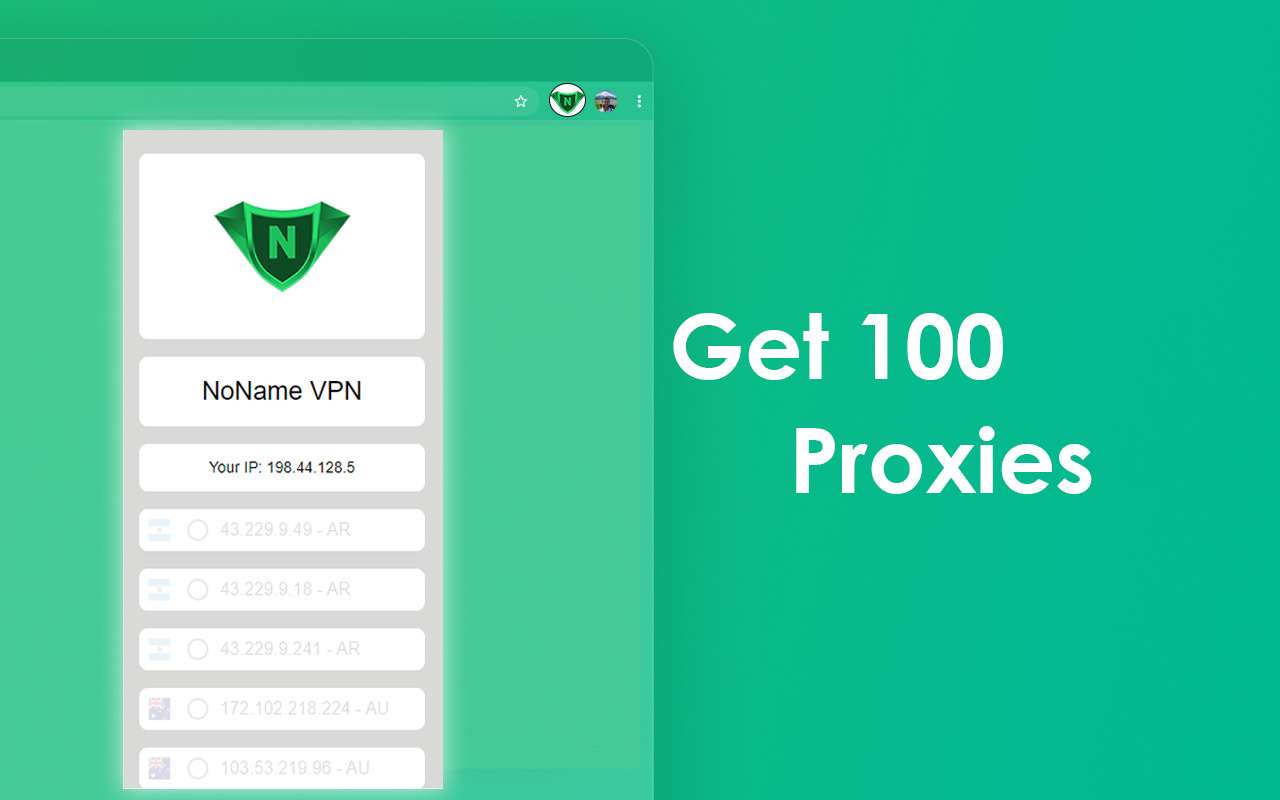
NoName VPN is a free proxy extension for Microsoft Edge that changes where your browser appears to be connecting from — without an account, a subscription, or a separate desktop client to install.
Everything happens in the toolbar popup. Open it and you get a list of servers you can filter by country name or by IP address. Click one, and the extension routes your browser traffic through it and shows you the IP address you are now browsing with, so you can see for yourself that the switch actually took effect. A small ON badge on the toolbar icon tells you at a glance that the connection is live. One click on Disconnect and you are back on your normal connection.
What it is useful for:
- Seeing how a website looks to visitors from another country
- Reaching content that is served differently depending on your region
- Adding a layer of separation between your home IP address and the sites you visit
- Quick checks while working on region-specific pages or campaigns
What it does not do:
The proxy applies to this browser only. Your other applications — mail clients, games, desktop software — keep using your normal connection. There is no registration step, so there is no account to create and no credentials to hand over before you can use it.
The interface ships in 55 languages and follows your browser language automatically. The extension is built on Manifest V3, the current Microsoft Edge extension platform, and asks only for the permissions a proxy actually needs to operate.
1. Open the Microsoft Edge Add-ons page for NoName VPN and click "Get".
2. Confirm by clicking "Add extension" in the dialog that appears.
3. A welcome page opens explaining the three basic steps. You can close it once you have read it.
4. Click the NoName VPN icon in the Edge toolbar to open the popup. If you do not see it, click the puzzle-piece icon and pin NoName VPN.
5. Choose a server from the list, or type a country name or IP address in the search box to narrow it down.
6. Click the server. The toolbar badge turns ON and the popup shows your new IP address.
7. Click Disconnect whenever you want to return to your normal connection.
Frequently Asked Questions
Yes. It is free to use and there is no account, sign-up or login step of any kind.
No. You install the extension, open the popup and pick a server — there is nothing to fill in first.
The toolbar badge shows ON while you are connected, and the popup displays the IP address you are currently browsing with.
Open the popup and click another server in the list. You can also filter the list by typing a country name or an IP address in the search box.
No. Only traffic from this browser goes through the proxy. Other apps on your device keep using your normal connection.
Click Disconnect in the popup. Your browser goes back to its normal connection immediately.
A proxy has to be able to carry requests to any site you visit, so the permission covers all addresses. It is what makes the connection work on every site rather than a hand-picked few.
Edge lets only one extension manage proxy settings at a time. If another one has taken control, the popup tells you, and you need to disable that extension first.
55 languages. The extension follows your browser language automatically.
This build is for Microsoft Edge and is distributed through the Edge Add-ons store.
Privacy Policy Content...
Reviews Content...